A Detailed Walkthrough of Using Codestral with VS Code
A Detailed Walkthrough of Using Codestral with VS Code
Hello everyone! Today, we’re going to explore how to integrate Codestral, a powerful generative tool developed by Mistral AI, into your workflow with Visual Studio Code (VS Code) using the Continue Dev Extension. Let’s dive in!
Introduction to Codestral
Codestral is part of a series of generative tools that have been making waves in the developer community. With impressive latency and outperforming Llama 3, Codestral is a significant milestone for Mistral AI.
Integrating Codestral with VS Code
As developers, we’re always looking for ways to streamline our workflow. One way to do this is by integrating Codestral into VS Code. Let’s explore how to do this.
Using the Continue Dev Extension
The first step is to install the Continue Dev extension. This extension supports Codestral and GBD4. It’s open-source and works well with both VS Code and JetBrains.
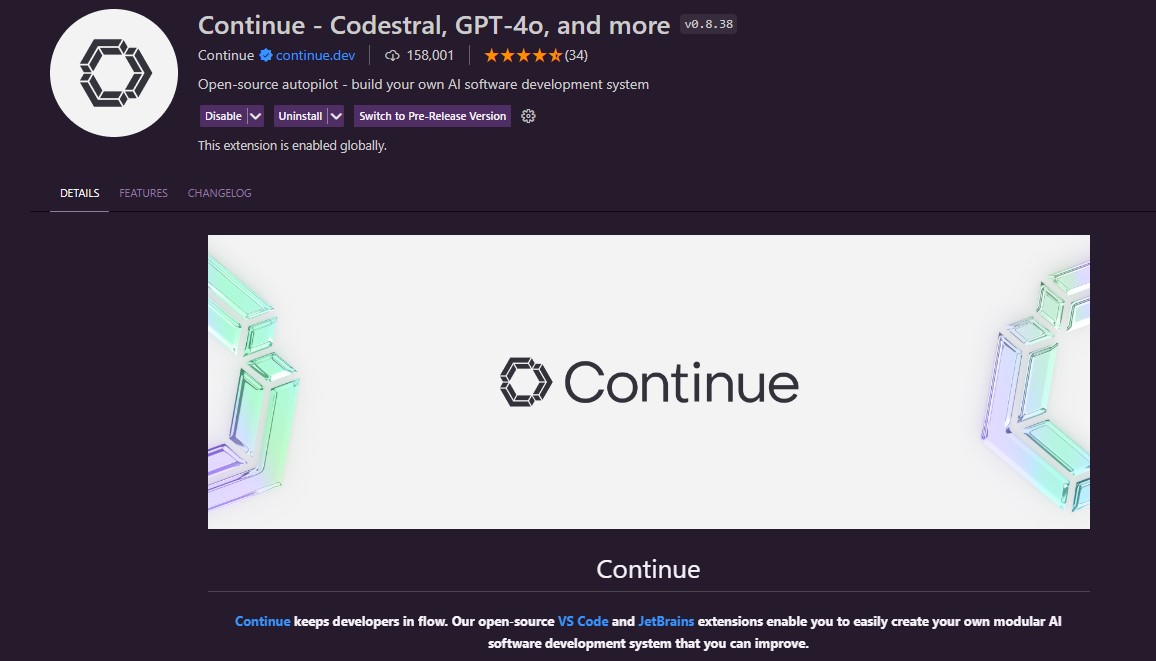
Installation and Setup
After installing the extension, you’ll need to set up Codestral. This involves generating an API key and adding a model for Codestral. The setup process is straightforward and quick.
Unleashing Codestral’s Power
With Codestral set up, you can start leveraging its capabilities right within VS Code. Here are some of the standout features:
- Code Generation: Press Cmd+I (or Ctrl+I on Windows/Linux) and provide instructions to generate code. Codestral will promptly generate the requested code snippet, saving you valuable time and keystrokes.
- Autocomplete Suggestions: Hit Cmd+L (or Ctrl+L on Windows/Linux) to receive intelligent autocomplete suggestions powered by Codestral’s language model. This feature can significantly improve your coding speed and accuracy.
- Code Refactoring: Use the Tab key to refactor a selected function or code block instantly. Codestral will suggest optimized versions of your code, helping you write cleaner and more efficient code.
- Code Explanation: If you’re ever unsure about a piece of code, simply add it to the chat using Cmd+L and ask Codestral to explain what’s happening. You’ll receive a detailed breakdown, making it easier to understand and maintain your codebase.
Conclusion
In conclusion, Codestral offers fast latency and high throughput, making it a valuable tool for developers. Its integration with VS Code via the Continue Dev extension allows for a seamless workflow. If you have any questions, feel free to leave a comment below. Happy coding!